How to use LuckyCam

1.How to Initiate LuckyCam

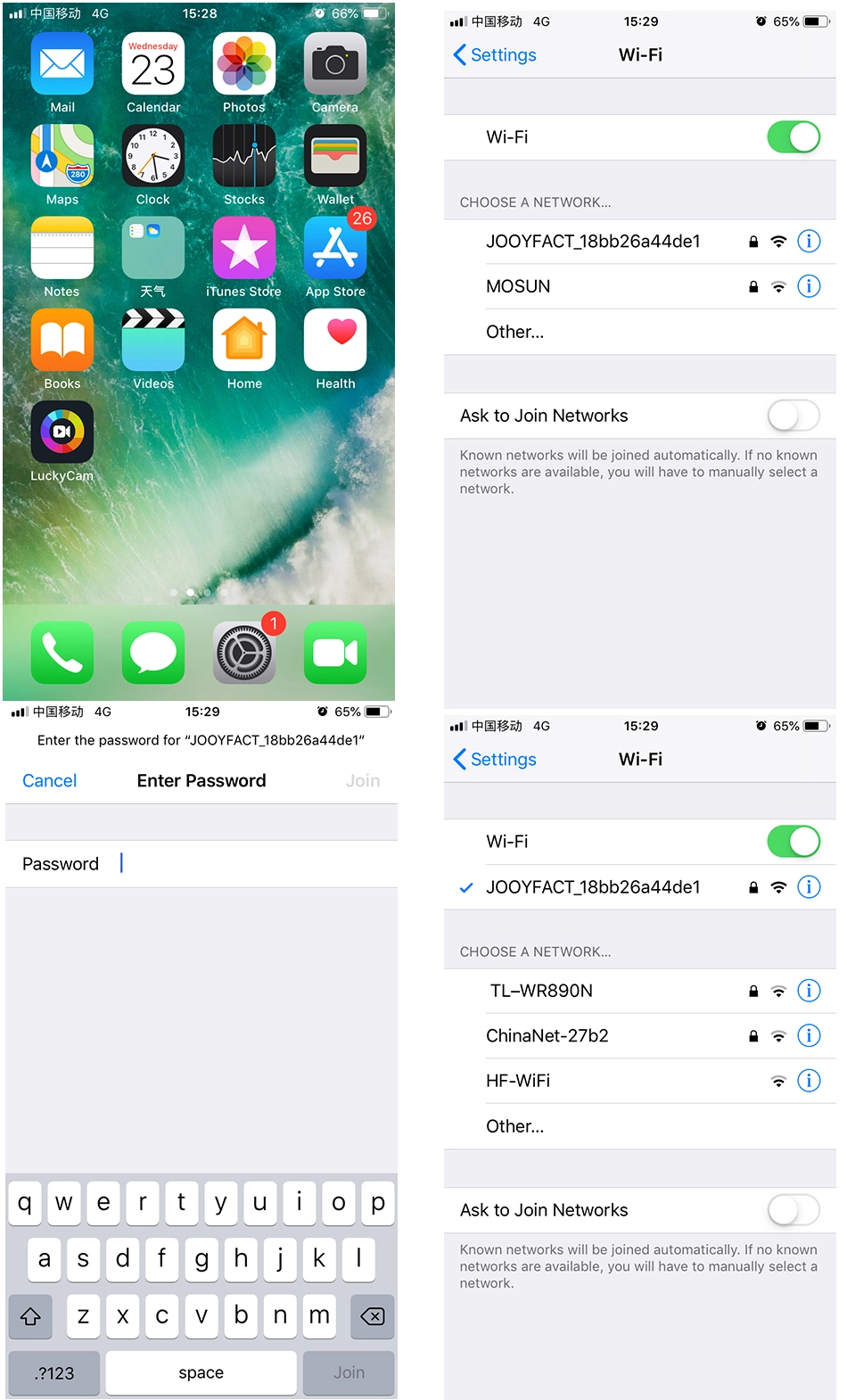
Begin by downloading the LuckyCam app from either the App Store or Google Play Store. Once installed, launch the app and navigate to the ‘Settings’ menu. Select ‘WiFi’ to locate the SSID of your Car DVR. Enter the default password “12345678” to establish a connection between your phone and the car DVR.

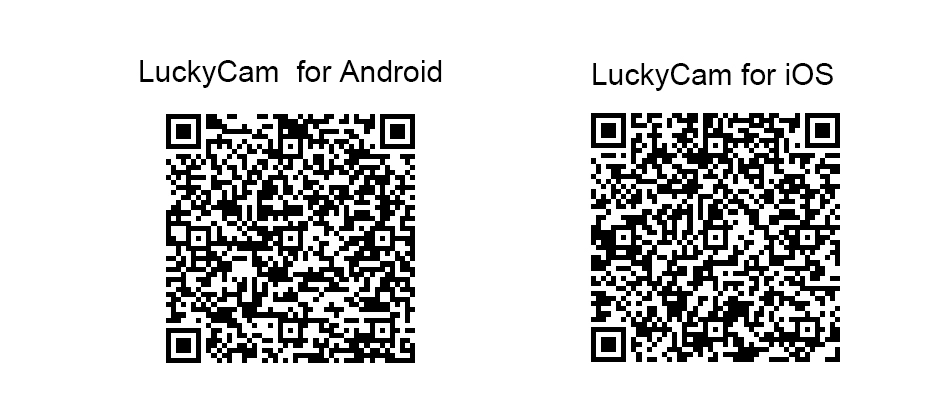
LuckyCam APP Downloading QR Code
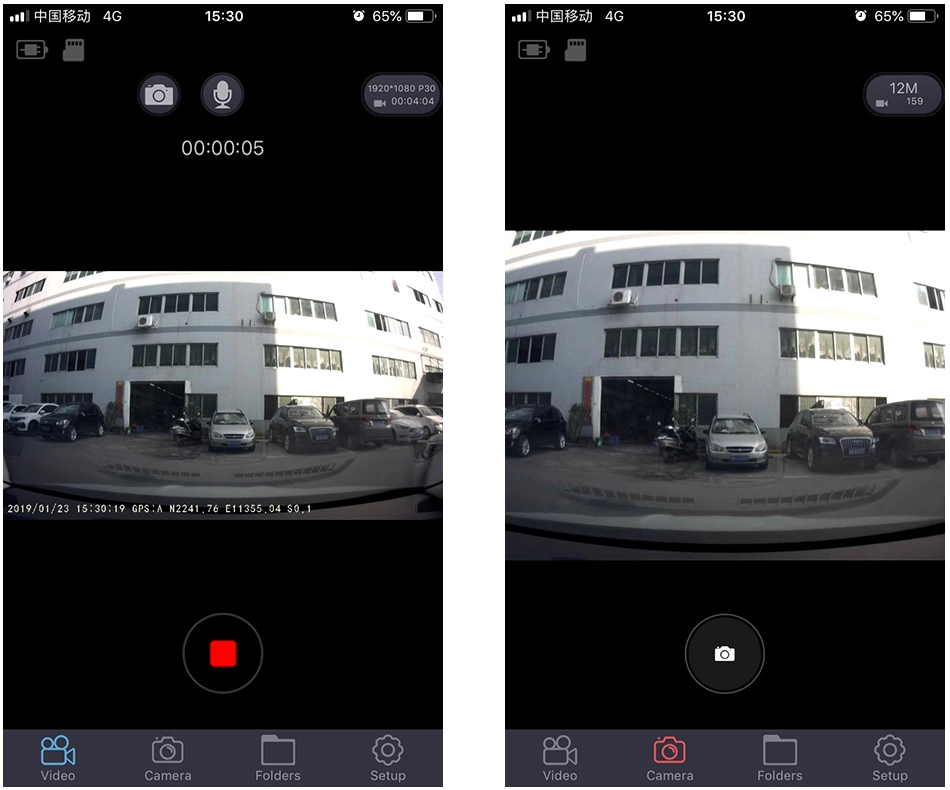
2.Upon opening LuckyCam, you will see options for Video, Camera, Folders, and Setup.

2.1 Video: This option allows you to access DVR recordings.

2.2 Camera: This option enables you to take pictures.

2.3 Folders:

  • If you select Video, you can view video files stored on the TF card or those that have been downloaded to your phone.
  • If you select Camera, you can view images stored on the TF card or those that have been downloaded to your phone.

2.4 Setup:

  • If you choose Video, you can configure settings related to DVR recordings.
  • If you choose Camera, you can set preferences for taking pictures.
LuckyCam connect the phone to the dash cam with Wi-Fi

3.Downloading Video Files to Your Phone

To download video files to your phone:

  1. Select Video and stop any ongoing recording.
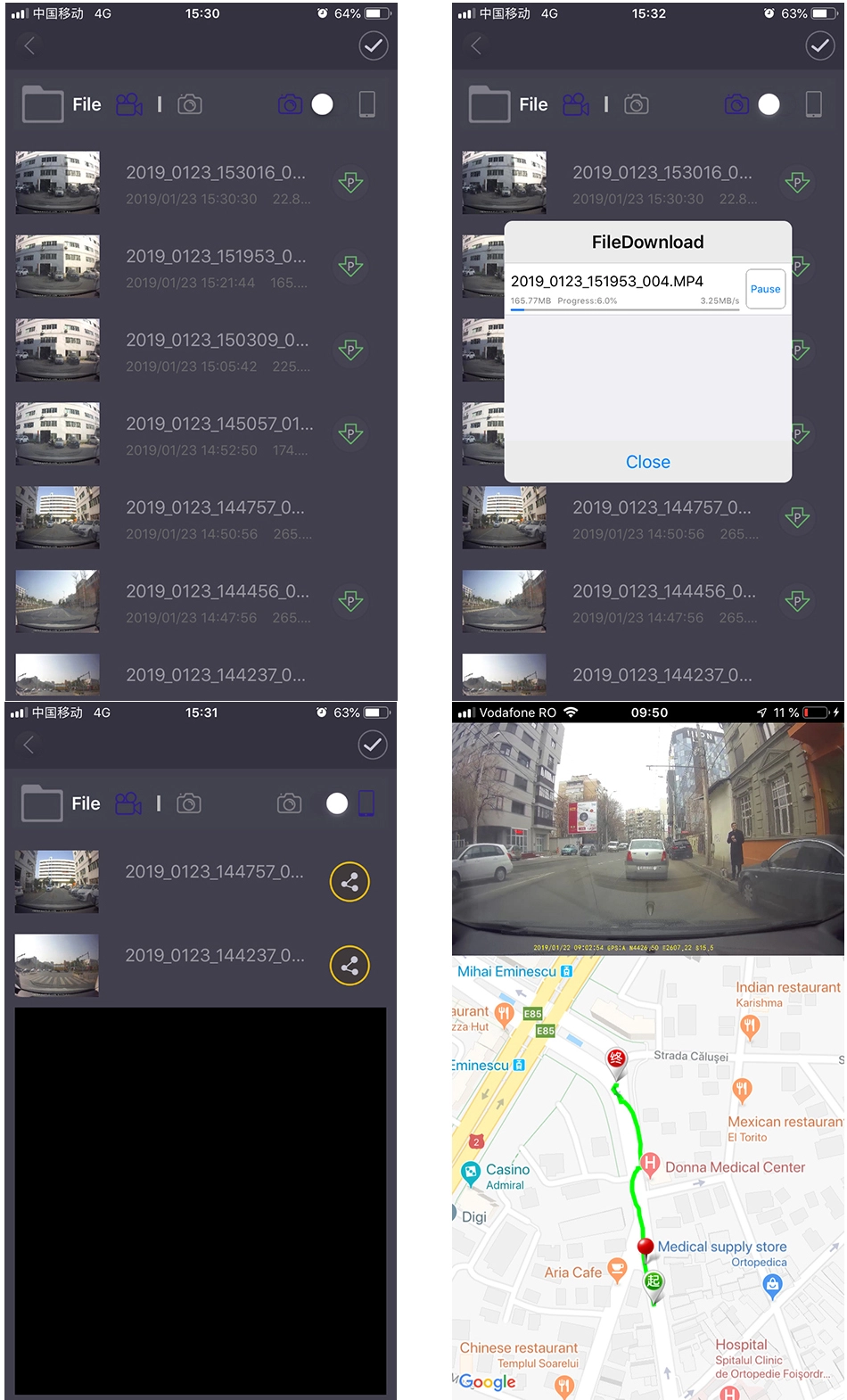
  2. Click on Folders to view the video files stored on the TF card or already downloaded to your phone.
  3. The camera icon represents files located on the TF card of the car DVR, while the phone icon signifies files stored on your phone.
  4. The blue icon indicates your current selection between the car DVR and your phone.
  5. Press the P icon to download files from the car DVR to your phone. For optimal speed, keep the car DVR within 1 meter of your phone. The maximum download speed is approximately 3MB/s, and this process does not require mobile data, saving you money.
  6. Once the videos have been downloaded to your phone, press the phone icon to access and view them.
  7. You can select the file you wish to play. If you have purchased the GPS version, you can also view tracking information on Google Maps, which is a very cool feature.
LuckyCam Recording
LuckyCam Recording
LuckyCam Review the video and download them

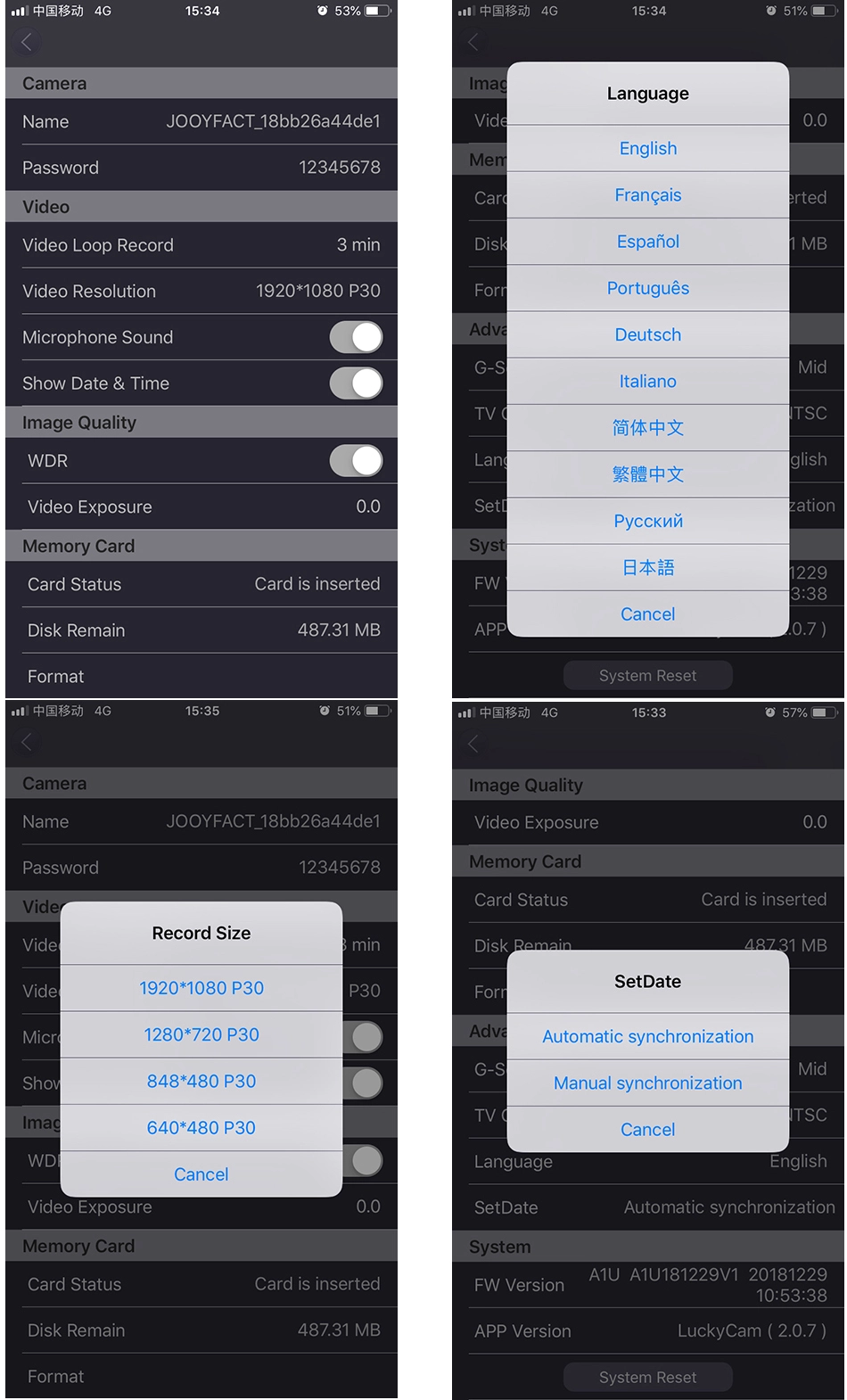
4.Setup for Settings

Please refrain from changing the device name via the app. If you need to change it, kindly contact us for assistance. Otherwise, you may encounter difficulties in reconnecting the car DVR to your phone, which may require an update to alter certain settings. Do not hesitate to seek help from us.

LuckyCam Settings
LuckyCam Settings

5.Regarding iOS and Android Systems

To date, we have not encountered any connectivity issues with iOS devices.

For Android systems, due to the numerous versions and phone models available, there may be some variations in connectivity. For certain Android phones, you may need to adjust specific settings. Navigate to Settings -> WiFi Settings -> Advanced Settings and enable Stay Connected.

If you encounter any further issues, please do not hesitate to contact us.

Scroll to Top