How to use RoadCAMaster


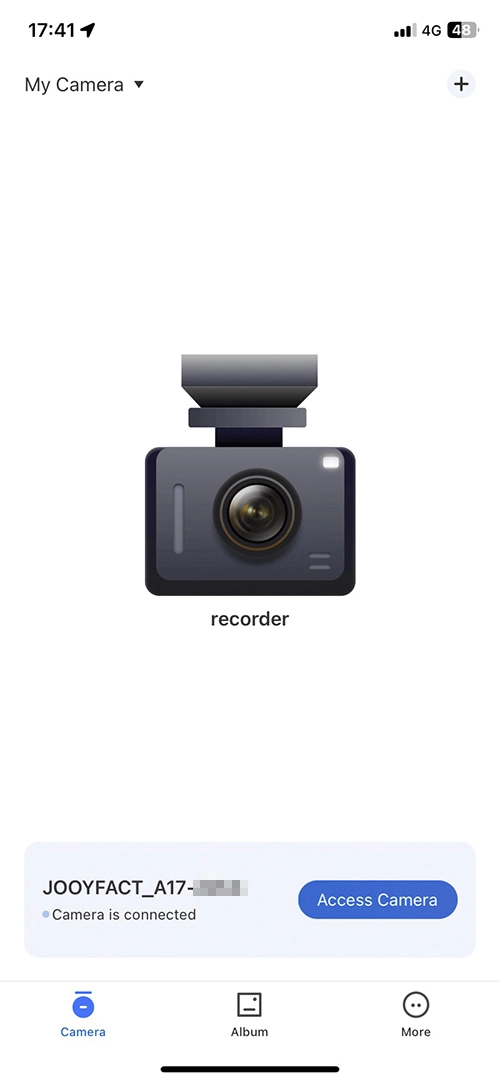
  1. Enter iOS or Android phone Settings – Wi-Fi , find the SSID as JOOYFACT A17 _ ******* .Input password :12345678 to connect with our dash cam .
  2. Start the RoadCAMaster App

To begin using the app, simply open and start the RoadCAMaster app on your mobile device.

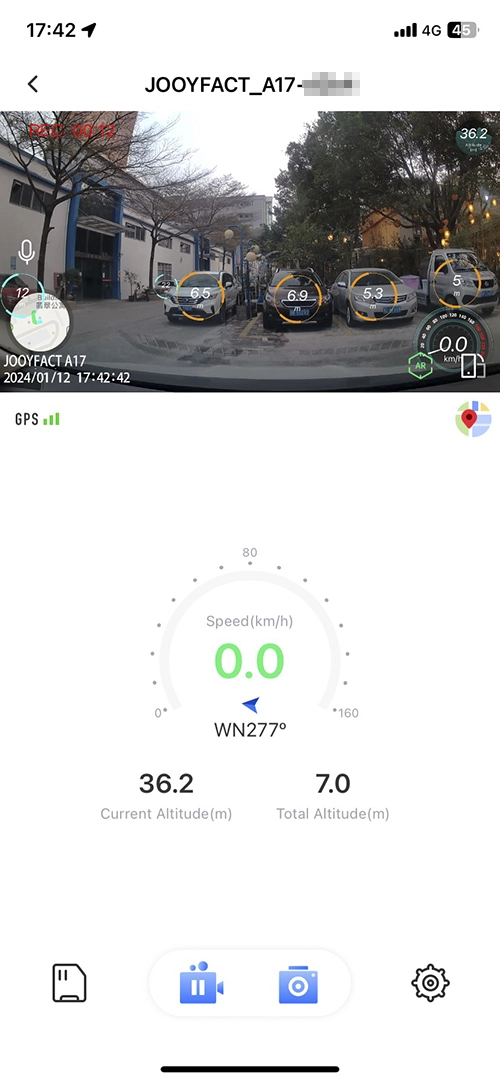
Start RoadCAMaster
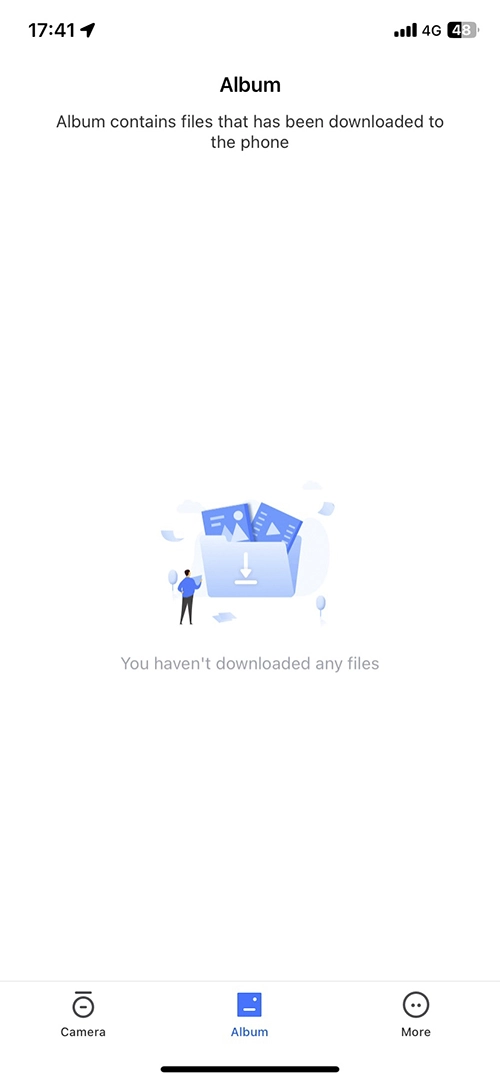
RoadCAMaster Album
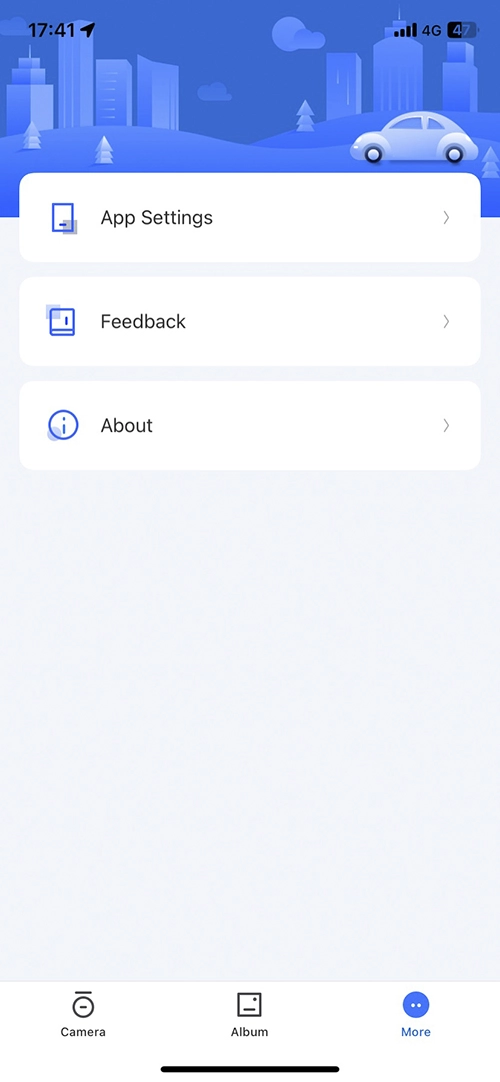
RoadCAMaster More
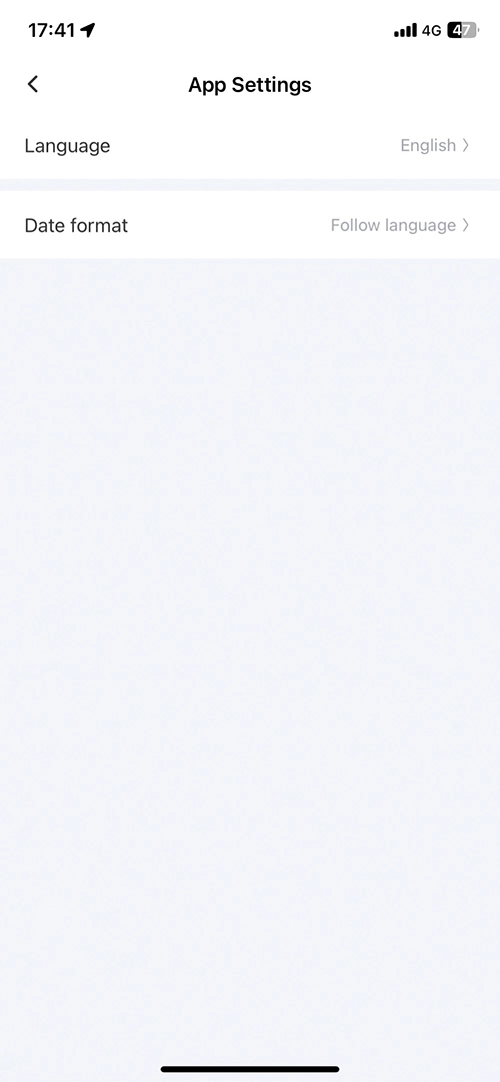
RoadCAMaster APP Settings
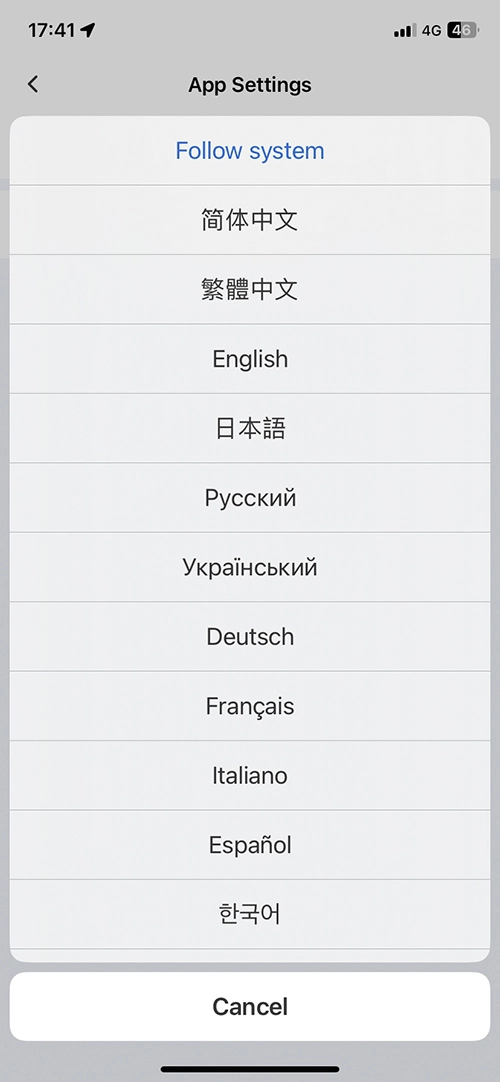
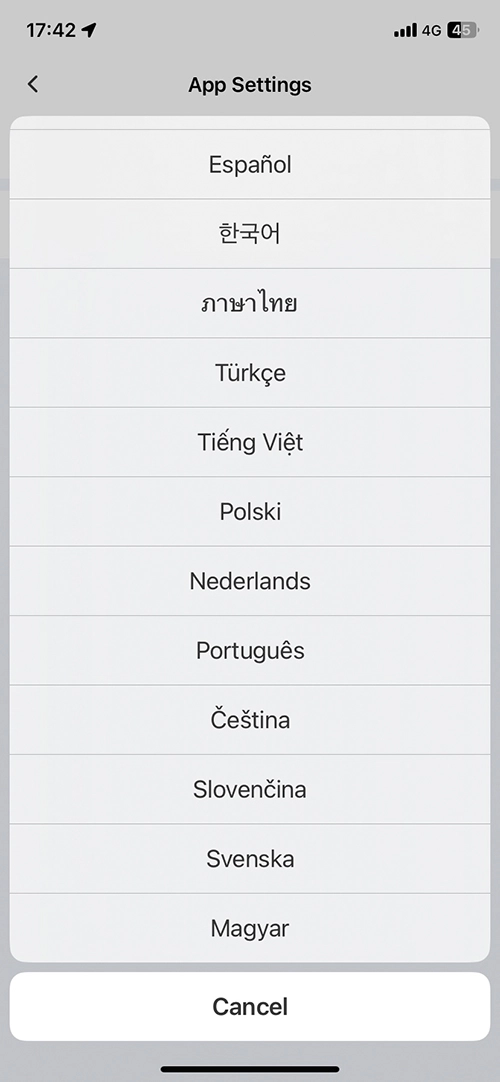
RoadCAMaster Language Settings
RoadCAMaster Language Settings 1


  1. Access Camera

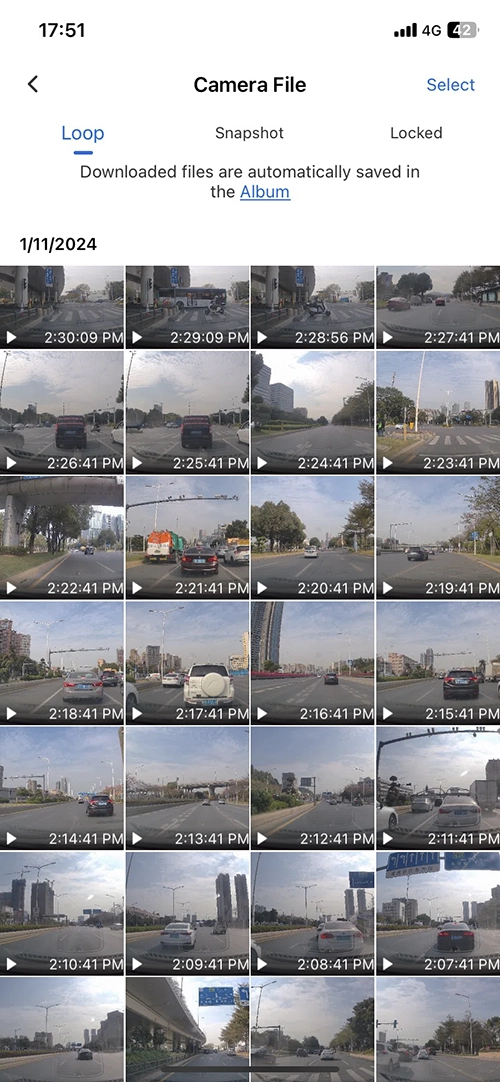
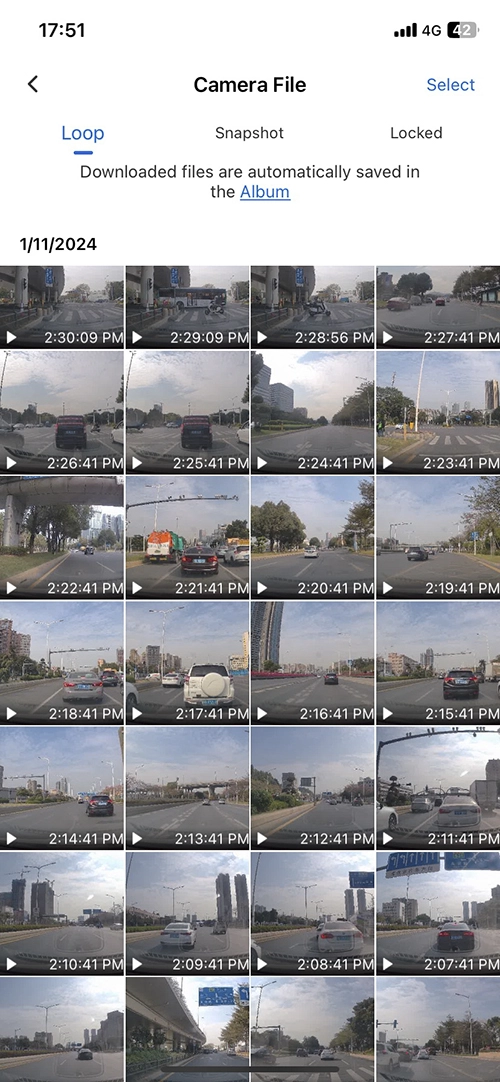
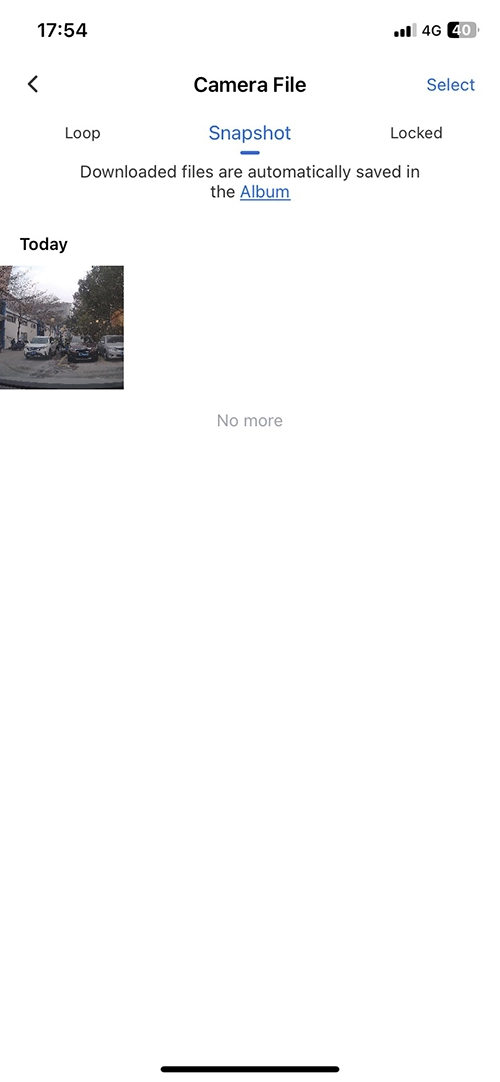
    Click the SD Card icon to enter Camera Files to view the Loop videos,Snapshot, Locked videos.

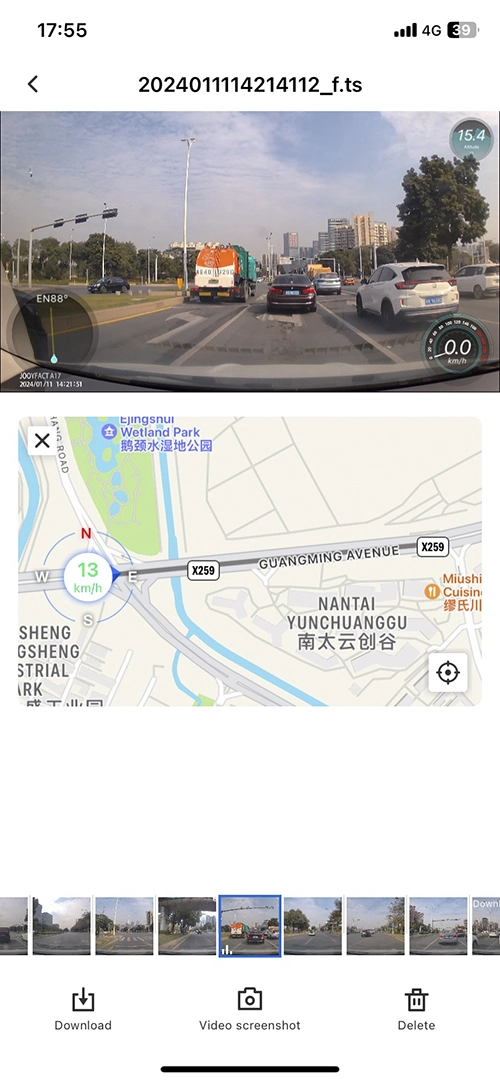
RoadCAMaster GPS Information
RoadCAMaster Camera Files


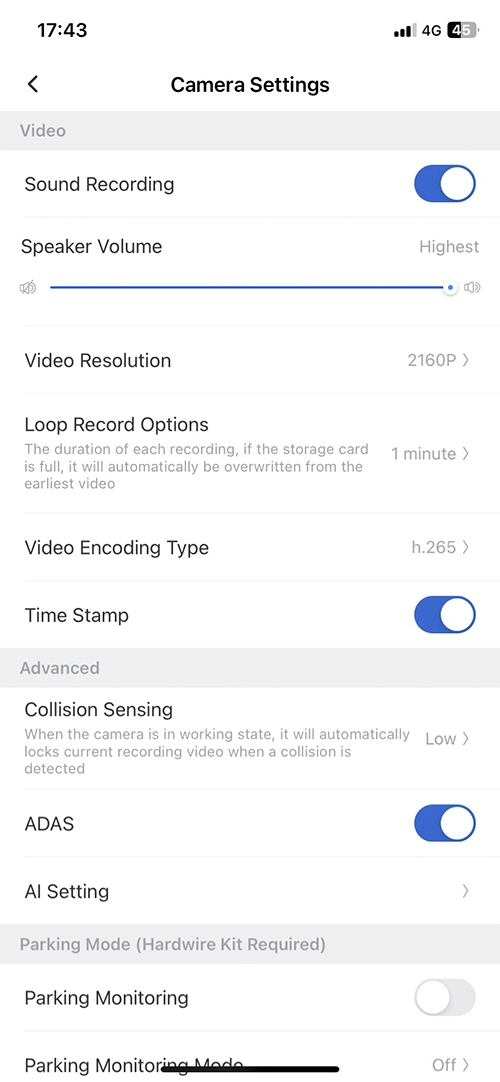
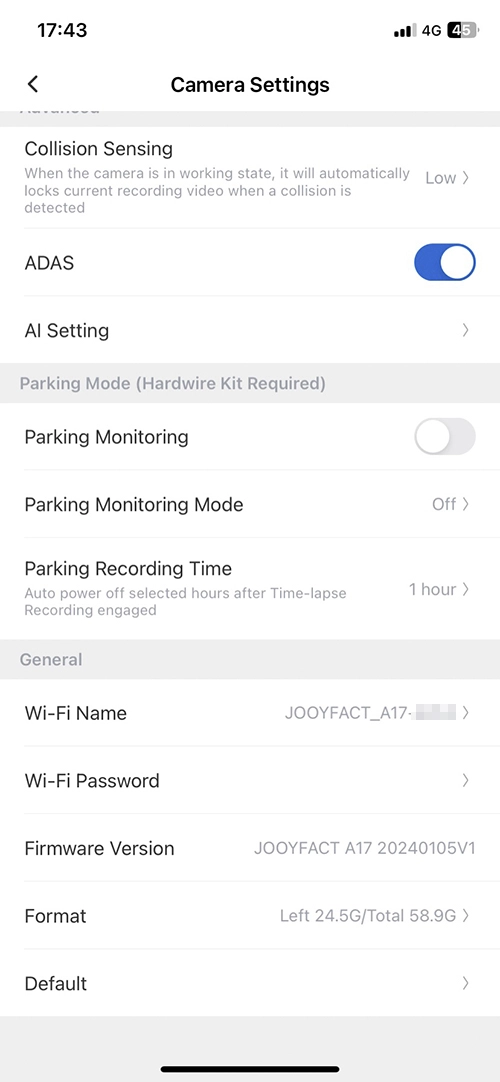
To enter the camera settings, click on the Settings icon within the RoadCAMaster app.

RoadCAMaster Settings
RoadCAMaster Settings 1


Sound Recording

Turn on/off the audio recording feature of the dash cam.

Speaker Volume

Turn up/down the volume of the dash cam’s speaker.

Wi-Fi Name & Wi-Fi Password

To avoid forgetting the password or encountering other issues, it’s best to keep the Wi-Fi name and password the same.

Format

Format the TF card when necessary.

Factory Reset

Restore the factory settings when needed.

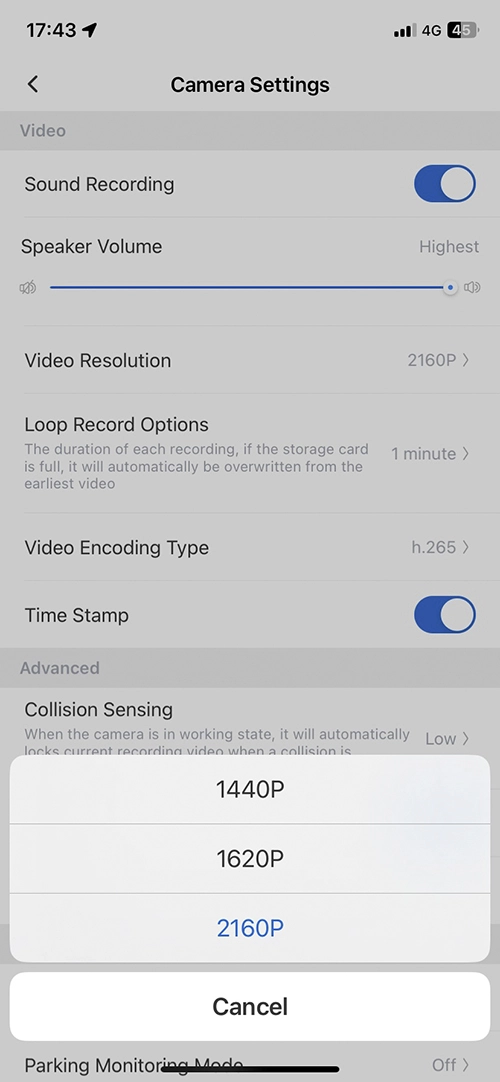
Video Resolution

Set the resolution of the recordings.

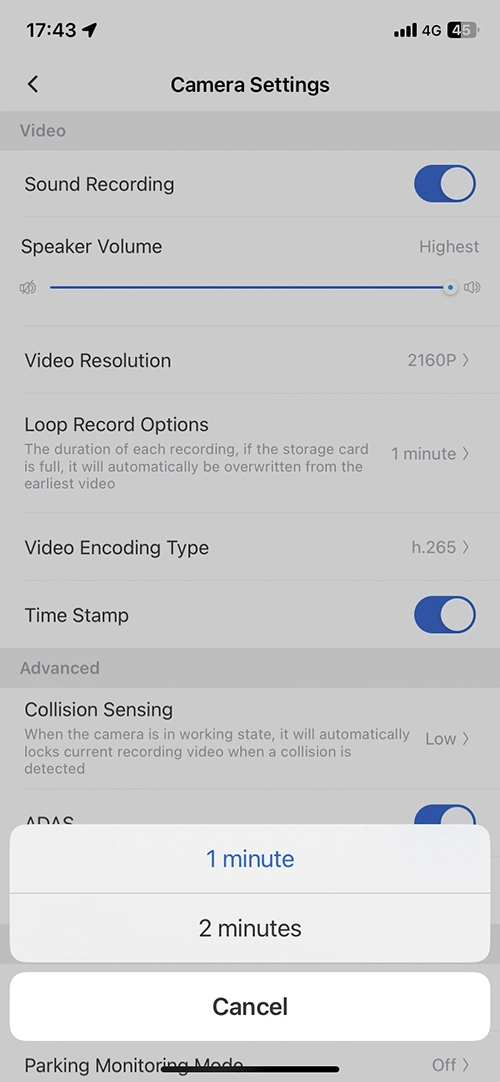
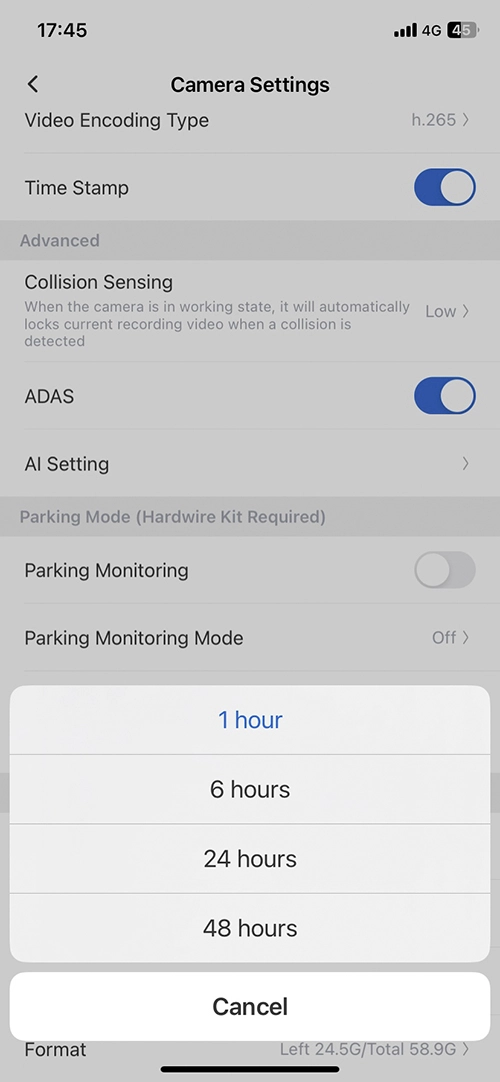
Loop Recording Options Set the loop recording term .

RoadCAMaster Video Resolution
RoadCAMaster Loop Recording

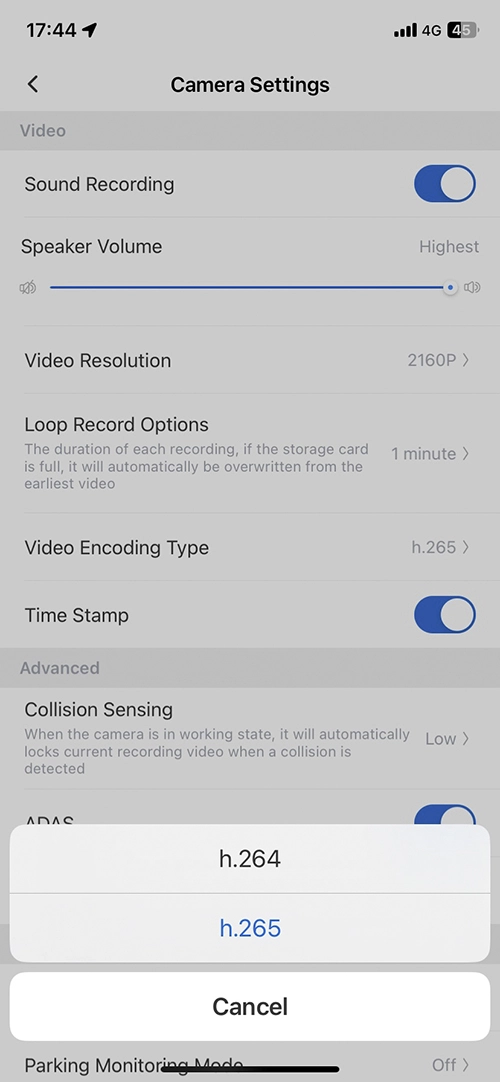
Video Encoding Type Set the encoding format.

Time Stamp Turn on/off time watermark .

Rear Mirror Set the video direction of the rear camera .

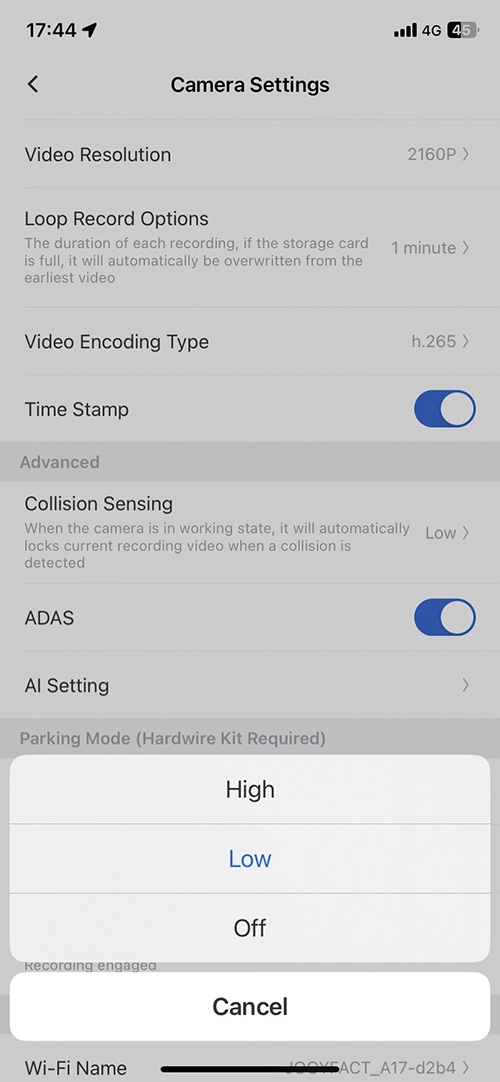
Collision Sensing Set the G-sensor sensitive .

RoadCAMaster Encode Format
RoadCAMaster Collision Sensing


ADAS Turn on / off ADAS functions .

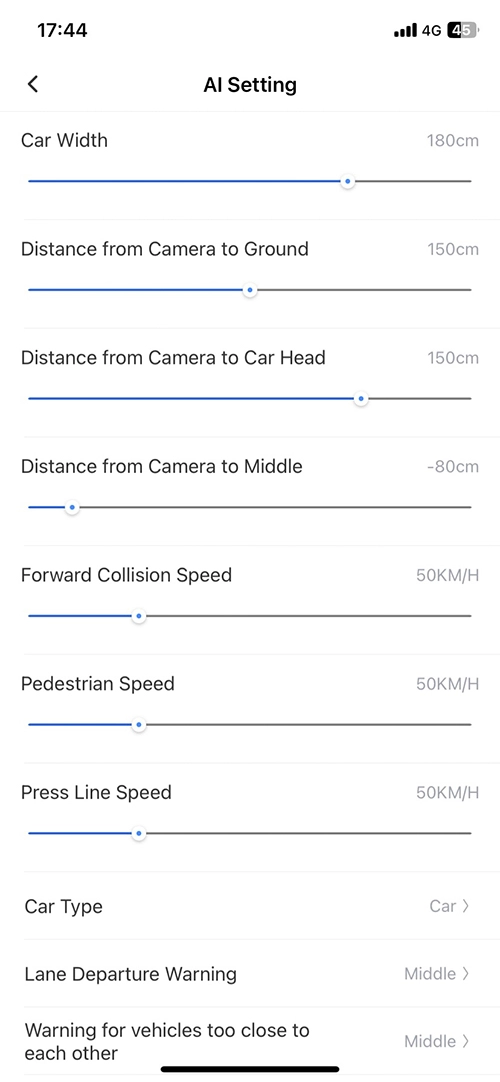
AI Setting Set the AI settings for ADAS. You can keep the default settings if preferred.

Car Width Set your car width

Distance from Camera to Ground

Distance from Camera to Car Head

Distance from Camera to Middle

Forward Collision Speed Pedestrian Speed Press Line Speed Set the speed of Warning

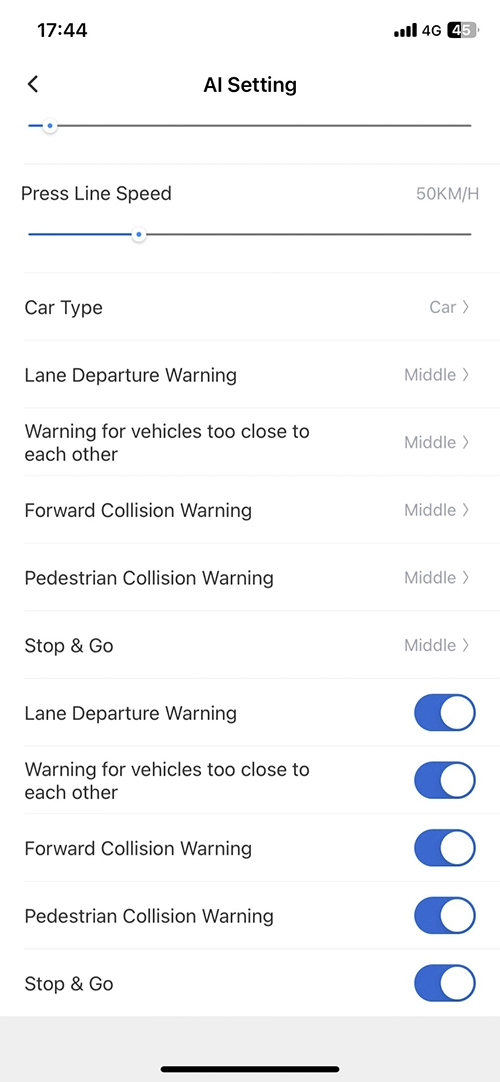
Car Type Set your car Type as Car , SUV, Truck ,Other

Lane Departure Warning, Warning for vehicles too colse to each other, Forward Collision Warning, Pedstrian Collision Warning , Stop & Go you can set the senstive and turn them on /off .

RoadCAMaster AI Settings
RoadCAMaster AI Settings 1


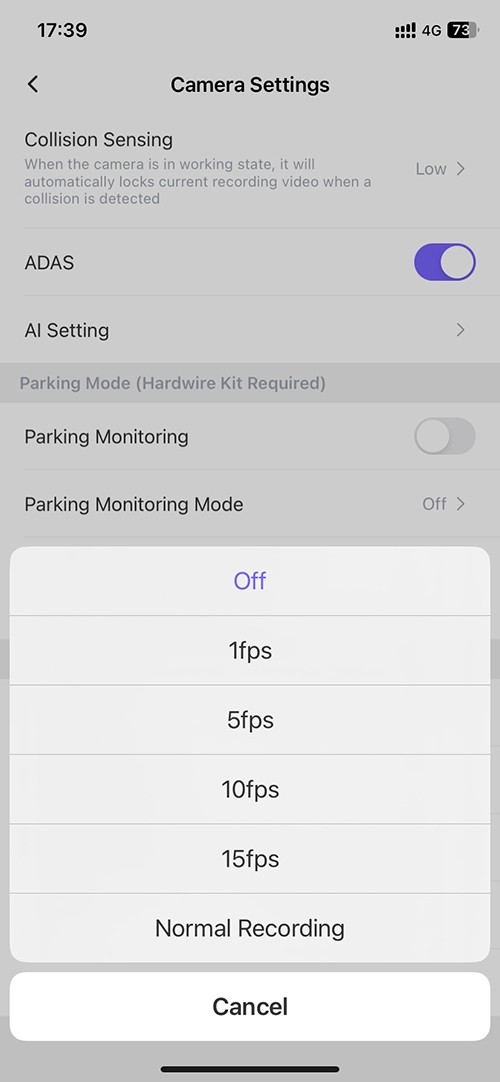
Parking Monitoring Turn on / off Parking Monitor

Parking Monitoring Mode Set the time lapse recording frame .

Parking Monitoring Duration Set the time lapse recording duration.

RoadCAMaster Time Lapse Recording
RoadCAMaster Time Lapse Recording Term

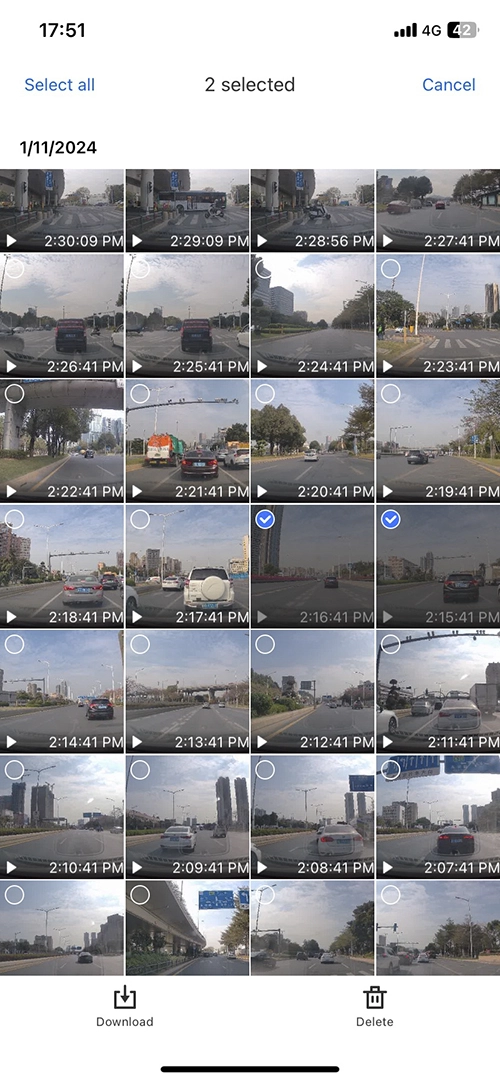
Enter the Camera File, to manage the video files, download the video files ,replay the video files.

RoadCAMaster Copy the Camera Files
RoadCAMaster Select the video files
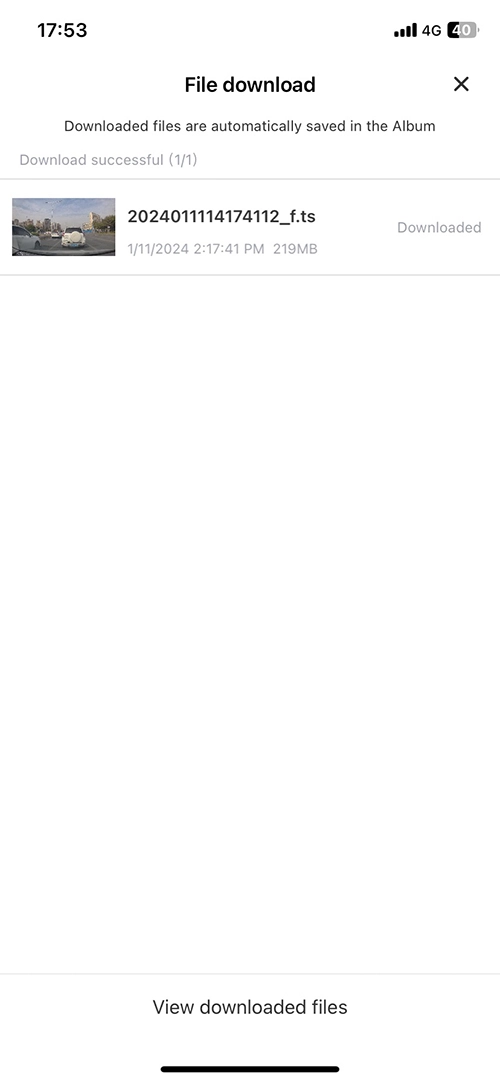
RoadCAMaster Downloading the Video File
RoadCAMaster Video Downloaded
RoadCAMaster Replay the Video Files

Add Your Heading Text Here

Scroll to Top